If you have recordings saved on a digital voice recorder, the next step is turning them into clear, usable text. Whether you need notes from a lecture, a transcript from an interview, or a written record of a meeting, learning how to transcribe voice recorder audio can save time and make information easier to search, share, and review.
This guide walks you through the full process, from checking supported audio formats to exporting a polished transcript. You will also learn how to choose between manual and AI-powered transcription, improve accuracy, label speakers, add timestamps, protect privacy, and correct common mistakes.
What Audio Formats Work for Transcription?
Before you begin, check the file type saved on your recorder. Most transcription tools support common formats, but compatibility can vary depending on the app or software you choose.
- MP3 – widely supported, compact, and easy to upload.
- WAV – higher quality, often preferred for clearer speech.
- M4A – common on some devices and mobile recorders.
- WMA – sometimes used by older digital recorders.
- AIFF – less common, but still supported by some tools.
If your file is in a less common format, you may need to convert it before transcription. A simple audio converter can change the file into MP3 or WAV, which are usually the safest choices for compatibility.
Step 1: Transfer the Recording to Your Computer
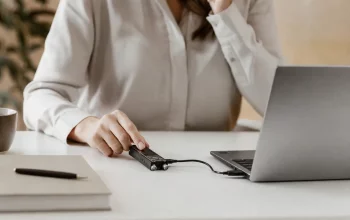
The first practical step in how to transcribe voice recorder audio is moving the recording from the device to your computer. This makes it easier to edit, upload, and manage the file.
- Connect the recorder to your computer with a USB cable, or remove the memory card if your device uses one.
- Open the recorder folder on your computer.
- Find the audio file you want to transcribe.
- Copy the file to a dedicated folder so you can keep track of your recordings.
- Rename the file with a clear label, such as lecture-march-12.wav or client-interview.mp3.
Keeping files organized helps prevent confusion, especially if you work with multiple recordings each week.
Step 2: Choose a Transcription Method
There are two main ways to convert voice recorder audio into text: manual transcription and AI-powered transcription. The best method depends on your budget, time, and the quality of the recording.
Manual transcription
Manual transcription means listening to the audio and typing the text yourself. This method takes longer, but it gives you complete control over wording, speaker labels, punctuation, and formatting. It works well when the recording has difficult audio quality, technical terms, or multiple people speaking over one another.
AI-powered transcription
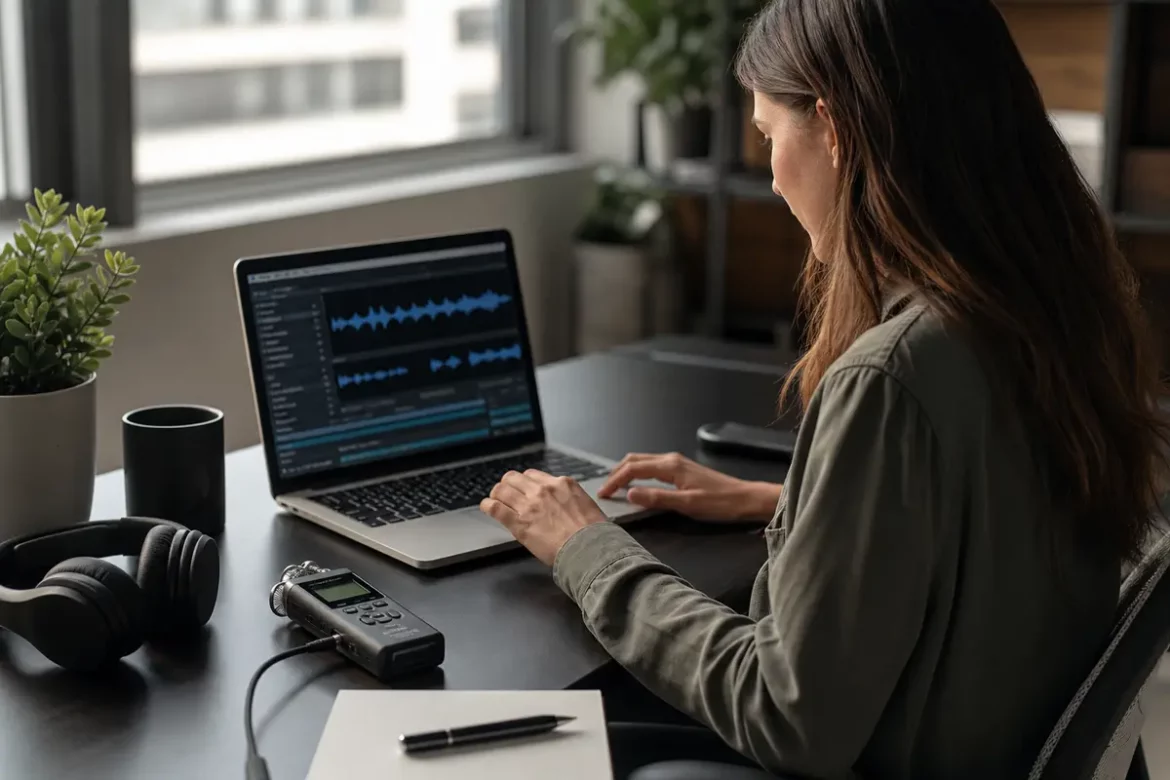
AI transcription tools can generate text quickly from uploaded audio files. Many platforms also support punctuation, timestamps, and speaker identification. This is the fastest option for most everyday tasks, especially if the recording is clear and the audio file is in a supported format.
If you are still deciding which recording format or workflow fits your needs, you may also find this comparison useful: AI voice recorder vs digital recorder.
Step 3: Decide Between Offline and Cloud-Based Tools
When learning how to transcribe voice recorder audio, it is important to understand the difference between offline and cloud-based transcription.
Offline transcription tools
Offline tools run on your computer without sending files to the internet. They are useful if you want more privacy, work in a secure environment, or need to transcribe recordings without a stable connection. They may require more setup, and some are less user-friendly than cloud tools.
Cloud-based transcription tools
Cloud platforms upload your file to a remote server for processing. They are usually easier to use and often provide faster results. Many also include editing tools, export options, and collaboration features. However, because the file leaves your device, you should review privacy policies carefully if the audio contains sensitive information.
Step 4: Upload or Import the Audio File
Once you have chosen a tool, upload the file from your computer. Most transcription services have a simple import button or drag-and-drop feature.
- Open the transcription software or website.
- Select the audio file from your computer.
- Choose the language spoken in the recording.
- Select any available options for speaker detection or timestamps.
- Start the transcription process.
If the recording includes more than one language, look for a tool that supports multilingual transcription or handles language switching. For best results, use a tool that allows you to review and edit the output afterward.
Step 5: Improve Transcription Accuracy
Even good tools can make mistakes, so accuracy depends on both the recording and the setup. Use these tips to improve results:
- Use clear recordings – background noise makes transcription less accurate.
- Choose the correct language – selecting the wrong language can create many errors.
- Upload the highest-quality file – WAV files often give cleaner results than heavily compressed audio.
- Split very long recordings – shorter files can be easier to process and edit.
- Identify technical vocabulary – manually correct names, industry terms, and acronyms.
For lectures, interviews, and business meetings, a quick review is always necessary. AI can get you most of the way there, but human editing makes the transcript reliable.
Step 6: Handle Multiple Speakers and Speaker Labels
Multi-speaker recordings can be challenging, especially when voices overlap. A useful transcript should show who said what whenever possible.
Many transcription tools offer speaker diarization, which means the software attempts to separate different speakers automatically. However, the labels may need cleanup.
To make speaker labeling more effective:
- Use consistent labels such as Speaker 1, Speaker 2, or actual names.
- Listen for clear voice changes and correct misassigned lines.
- Rename speakers based on context, such as Host, Guest, or Manager.
- Leave overlapping sections as notes if the dialogue is hard to separate.
For interviews and meetings, speaker labels are especially important because they make the transcript easier to follow and quote accurately.
Step 7: Add Timestamps for Easy Reference
Timestamps show when words were spoken in the audio. They are useful when you need to revisit a specific part of the recording, verify a quote, or create detailed notes.
You can usually choose a timestamp format such as:
- Every paragraph – helpful for readable transcripts.
- Every speaker change – useful for interviews and meetings.
- At fixed intervals – good for long lectures or presentations.
If your tool does not generate timestamps automatically, you can add them during the editing stage. This extra step makes the transcript much more practical to use later.
Step 8: Correct Mistakes and Clean Up the Transcript
No transcript is perfect on the first pass. Careful proofreading is the last major step in how to transcribe voice recorder audio accurately.
Review the transcript for:
- Misspelled names
- Incorrect punctuation
- Missing words
- Confused homophones, such as their and there
- Repeated phrases or filler words that should be removed
If the recording is important, play the audio while reading the transcript line by line. This is the best way to catch small errors that automated tools can miss.
You can also clean the transcript based on purpose. For example, a legal or research transcript may need exact wording, while a meeting summary may benefit from light editing for readability.
Step 9: Export to an Editable Document
After editing, export your transcript into a file format that is easy to store and share. Common export options include:
- DOCX – best for editing in Microsoft Word or Google Docs
- TXT – simple plain text for quick use
- PDF – good for sharing a final read-only version
- RTF – compatible with many word processors
If you expect to revise the transcript later, keep an editable master copy in DOCX or Google Docs. You can always create a PDF after final review.
Data Privacy and File Security
Audio files may contain personal, business, or confidential information, so privacy should be part of your transcription workflow. This is especially important for interviews, internal meetings, medical notes, and client calls.
To keep files secure:
- Use trusted transcription software with clear privacy terms.
- Avoid uploading sensitive files to unknown websites.
- Delete uploaded audio if the platform allows it and you no longer need it stored.
- Store transcripts in protected folders or encrypted drives.
- Limit access to people who actually need the file.
If privacy is a major concern, offline transcription tools may be the safer choice because the audio never leaves your device.
Example Workflows for Common Use Cases
Lecture transcription
For lectures, focus on clarity and structure. Export the recording from your digital voice recorder, upload a WAV file if available, set the correct language, and use timestamps every few minutes. After transcription, clean up technical terms and organize the content into sections or headings.
Interview transcription
For interviews, speaker labels matter most. Use a tool with speaker separation if possible, then label speakers by name or role. Review quotes carefully and fix any places where the speakers overlap or the software misidentifies a voice.
Meeting transcription
For meetings, the goal is usually speed and clarity. Use AI transcription for a fast draft, then review action items, decisions, and speaker names. Add timestamps to key discussion points so teammates can find them later.
Best Practices for Better Results
If you want consistently strong transcripts, build a repeatable workflow. Here are a few best practices:
- Start with the cleanest audio file possible.
- Choose the right language before transcribing.
- Use AI to save time, then proofread manually.
- Label speakers and add timestamps when needed.
- Save the final transcript in an editable format.
The more organized your process is, the faster you can turn voice recorder files into accurate text.
Conclusion
Learning how to transcribe voice recorder audio is straightforward once you follow a clear process. Check the file format, transfer the recording to your computer, choose a transcription method, review the output, and edit it for accuracy. Whether you are working with a lecture, interview, or meeting, the right workflow can turn audio files into useful text in very little time.
By choosing the right tools, protecting privacy, and cleaning up the final transcript, you can create written records that are accurate, searchable, and easy to share.
Frequently Asked Questions
What is the easiest way to transcribe voice recorder audio?
The easiest method is usually an AI transcription tool. Upload the audio file, choose the language, and review the output for mistakes. This is much faster than typing the transcript manually.
What audio format is best for transcription?
WAV is often the best choice for quality, but MP3 is also widely supported and easier to share. If your tool accepts both, use the highest-quality version available.
Can I transcribe recordings with multiple speakers?
Yes. Many transcription tools can detect different speakers automatically. You may still need to edit the labels and check for overlapping dialogue.
How do I improve transcription accuracy?
Use a clear recording, choose the correct language, upload a high-quality file, and proofread the transcript carefully. Manual review is especially important for names, jargon, and technical terms.
Is it safe to upload sensitive recordings to online transcription tools?
It depends on the platform. Review the privacy policy first, and consider offline transcription if the audio contains confidential information.
Can I export the transcript into Word or Google Docs?
Yes. Most transcription tools let you export to DOCX, TXT, or PDF. DOCX is best if you want to keep editing the transcript afterward.