If your voice recorder not recognized by computer issue has stopped you from transferring files, you are not alone. This is a common post-purchase problem, and in many cases, the recorder is fine. The issue is usually caused by the cable, connection mode, computer settings, or a storage problem on the device itself.
This guide walks you through the most common fixes for Windows and macOS, plus recovery steps if your recordings are missing. You will also learn how to safely format the device only when necessary, so you do not lose important audio.
Start with the simplest cause: the USB cable
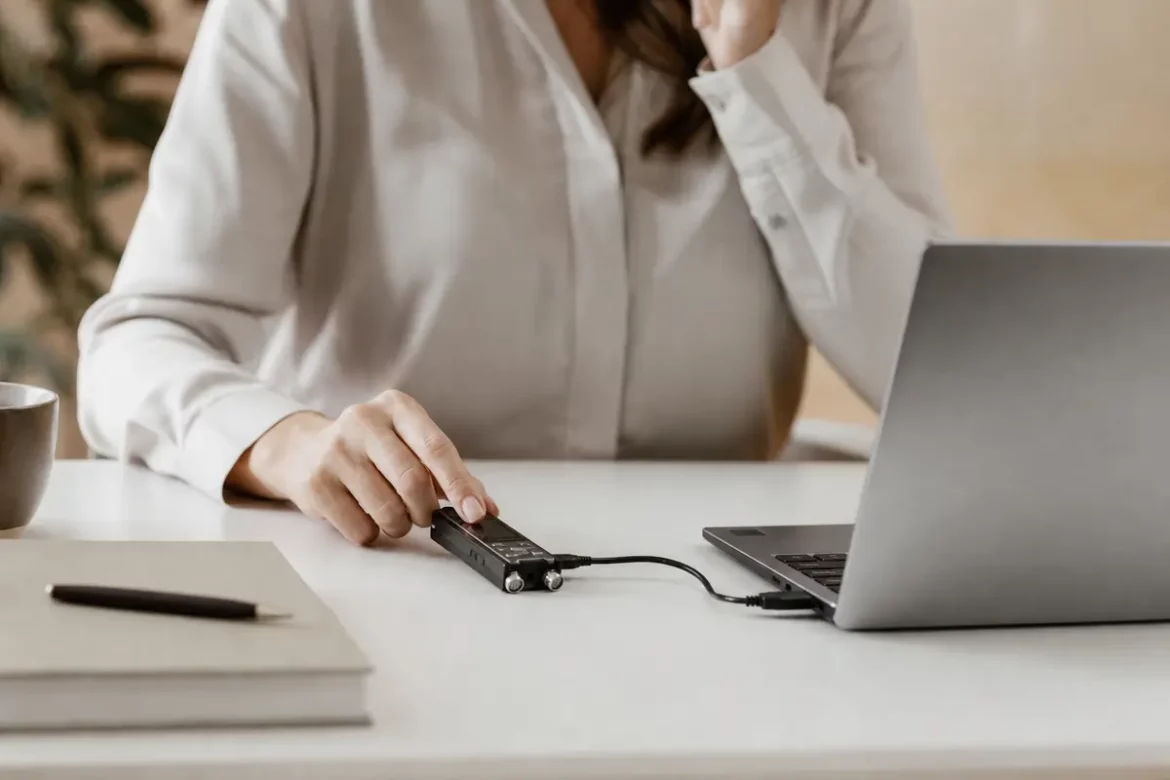
One of the most common reasons a voice recorder is not detected is a charging-only cable. Some USB cables can power a device but cannot transfer data. If the recorder charges when plugged in but does not appear on your computer, the cable may be the problem.
- Try the original cable that came with the recorder.
- Test a different USB cable that supports data transfer.
- Avoid cables that are designed only for charging phones or accessories.
If the recorder works with one cable and not another, you have likely found the issue.
Check the USB mode on the recorder
Many digital voice recorders have more than one USB setting. Some default to charging mode, while others support file transfer only after you choose the correct option on the device screen or in the menu.
Look for settings such as:
- PC Link
- Mass Storage
- USB Transfer
- Data Mode
If the recorder asks whether you want to charge or transfer files, choose the file transfer option. A locked or sleeping device may also fail to connect properly, so make sure the recorder is powered on and unlocked before plugging it in.
Inspect the device lock and power status
Some recorders will not communicate properly with a computer if the hold switch or lock function is active. Others need to be fully awake before the computer can detect them.
Before reconnecting, make sure you:
- Turn the recorder on.
- Disable any hold or lock switch.
- Exit playback or recording mode if required.
- Restart the device if it seems frozen.
If the recorder still is not recognized, unplug it, wait a few seconds, and reconnect it to a different USB port.
Try another USB port and check for physical damage
Sometimes the problem is not the recorder at all. A damaged USB port, loose connector, or worn cable can interrupt the connection. Front-panel ports on desktops may be less reliable than ports on the back of the machine. Some laptops also provide different power levels across ports.
Test these options:
- Use a different port on the same computer.
- Try a direct port instead of a USB hub or docking station.
- Inspect the recorder’s USB port for debris or damage.
- Look for bent pins, looseness, or intermittent connection behavior.
If the device connects only when held in a certain position, the port may need repair.
Windows troubleshooting steps
If the voice recorder is not recognized by computer on Windows, the issue may be related to drivers or device detection. Windows usually installs common USB storage drivers automatically, but sometimes it needs a refresh.
Check Device Manager
Open Device Manager and look under Portable Devices, Disk Drives, or Universal Serial Bus controllers. If you see a warning icon, Windows may have failed to load the correct driver.
Try these actions:
- Unplug the recorder and reconnect it.
- Restart your PC.
- Right-click the device and choose Update driver.
- Uninstall the device, then reconnect it so Windows reinstall it automatically.
Use Disk Management
If the recorder appears as a removable drive but does not open, it may have a drive letter conflict or a file system problem. Open Disk Management and check whether the drive has been assigned a letter. If not, assign one manually.
If Windows shows the recorder as unallocated or asks to format it, stop before formatting if the recordings matter. Formatting can erase the data.
macOS troubleshooting steps
On Mac, a recorder may not show in Finder even when the computer detects it. Start by checking the physical connection, then move to system tools.
Check Finder and Disk Utility
Open Finder preferences and make sure external devices are set to appear in the sidebar or desktop. Then open Disk Utility and see whether the recorder appears there.
If it appears in Disk Utility but not in Finder, the drive may need to be mounted. If it appears with an error, the file system may not be fully compatible with macOS.
Also try:
- A different USB cable.
- A different USB port or adapter.
- Restarting the Mac with the recorder disconnected, then reconnecting it.
File system compatibility issues
Some recorders use file systems that your computer may not read correctly without support. Others may have been formatted in a way that works on the recorder but not on your operating system. This can make it seem like the voice recorder is not recognized by computer even though the device is connected.
Common signs of a file system problem include:
- The drive appears but will not open.
- The computer asks to initialize or format the device.
- Files are missing or unreadable.
- The recorder connects on one computer but not another.
If this happens, avoid formatting until you confirm that the audio files are backed up or recovered.
How to recover recordings safely
If the recorder is detected inconsistently or the files seem missing, stop using it as much as possible. Continued use can overwrite recoverable audio.
Try these recovery steps:
- Connect the recorder to another computer.
- Copy visible files immediately to a safe folder.
- Use trusted recovery software if files are deleted or the drive is damaged.
- Seek professional data recovery help if the recordings are critical.
For valuable recordings, do not run repeated format or repair commands before attempting recovery.
When safe formatting is the right fix
Formatting should be a last step, not the first. It can solve corruption or compatibility problems, but it also removes data from the recorder.
Safe formatting is appropriate when:
- You have already backed up the recordings.
- The device is empty or the data is no longer needed.
- The recorder continues to fail on multiple computers.
- The file system is corrupted and cannot be repaired.
Choose the format option recommended by the manufacturer when possible. After formatting, test the recorder by creating a short test recording and transferring it to your computer.
How to prevent future connection problems
Once your recorder is working again, a few habits can reduce future transfer issues:
- Use a data-capable USB cable and label it clearly.
- Eject the recorder safely before unplugging it.
- Avoid disconnecting during file transfers.
- Keep the recorder charged and firmware updated if the manufacturer provides updates.
- Store recordings in multiple places, including a computer backup.
If you are shopping for a smaller, more discreet device with easy everyday use, you may want to compare options like the small and secure digital audio recorder for a simpler workflow.
Final checklist
If your voice recorder is not recognized by computer, work through the problem in this order: test a data cable, confirm the USB mode, unlock the device, try another port, check Windows or macOS settings, inspect the file system, and only then consider recovery or formatting.
In many cases, the fix is simple. A better cable, the right USB mode, or a different port is enough to restore file transfers and protect your recordings.
Frequently Asked Questions
Why is my voice recorder charging but not showing on my computer?
This usually means you are using a charging-only cable, the recorder is in the wrong USB mode, or the device is locked. Try a data-capable cable and check the recorder settings.
What should I do first if my recorder is not detected?
Start with the cable and USB port. Then make sure the recorder is powered on, unlocked, and set to the correct transfer mode.
Can a file system issue stop my recorder from opening?
Yes. If the file system is unsupported or damaged, the computer may see the recorder but refuse to open it or ask to format it.
Is it safe to format a recorder that is not recognized?
Only if you have already backed up or recovered the recordings. Formatting can erase your files, so avoid it until recovery is no longer needed.
Why does my recorder work on one computer but not another?
This often points to a driver, port, or operating system compatibility issue. Try a different cable, another port, and check the device settings on both computers.